

Lessons from the Stryker Incident and Microsoft 365 Recommendations You Should Start Implementing Today

Source: NSB Cyber
The US-based medical device manufacturer, Stryker, recently made headlines around the world in relation to a cybersecurity incident they suffered. As a short recap of the key facts:
On March 11, 2026, Stryker was reportedly breached by an Iran-linked hacktivist group, Handala.
Handala purportedly breached a Global Administrator account in the Stryker Microsoft 365 (M365) IT environment and proceeded to wipe 200k+ Stryker devices!
This resulted in global outage across internal systems and also affected medical devices across the global.
As incident responders who regularly deal with Microsoft 365 (M365) breaches, the news of a highly privileged M365 account being breached sadly does not surprise us. However, it is interesting and worrying to note how disruptive a breached Global Administrator account can be, when a Threat Actor’s MO changes from typical run-of-the-mill financial fraud to ‘wiper’-style attacks aiming to cripple systems and disrupt business operations as much as possible.
We won’t delve into every single fact from this cyber incident, hence, let’s get straight into the four practical M365 recommendations learnt from this incident to help you get a Handala of these incidents when they Stryker (Editor note: this will be the last pun in this author will be ever allowed to write).
Key Recommendation 1: Multi-Admin Approval for Intune Actions
From the Incident: 200k+ devices were wiped, which is incredible. An Intune wiping has the effect of setting the devices back to its factory default settings, meaning all the data is likely gone. While it was reportedly a compromised Global Administrator account that had performed the wipe in the Stryker incident, it is also possible to perform the same action with an Intune Administrator account.
Luckily, Microsoft have introduced a fantastic control that would help reduce this situation called “Multi-admin approval” policies!
How: We’ve outlined the high-level steps here:
1. Navigate to the Intune admin portal
2. Navigate to the ‘Tenant administration’ → ‘Multi Admin Approval’ blades
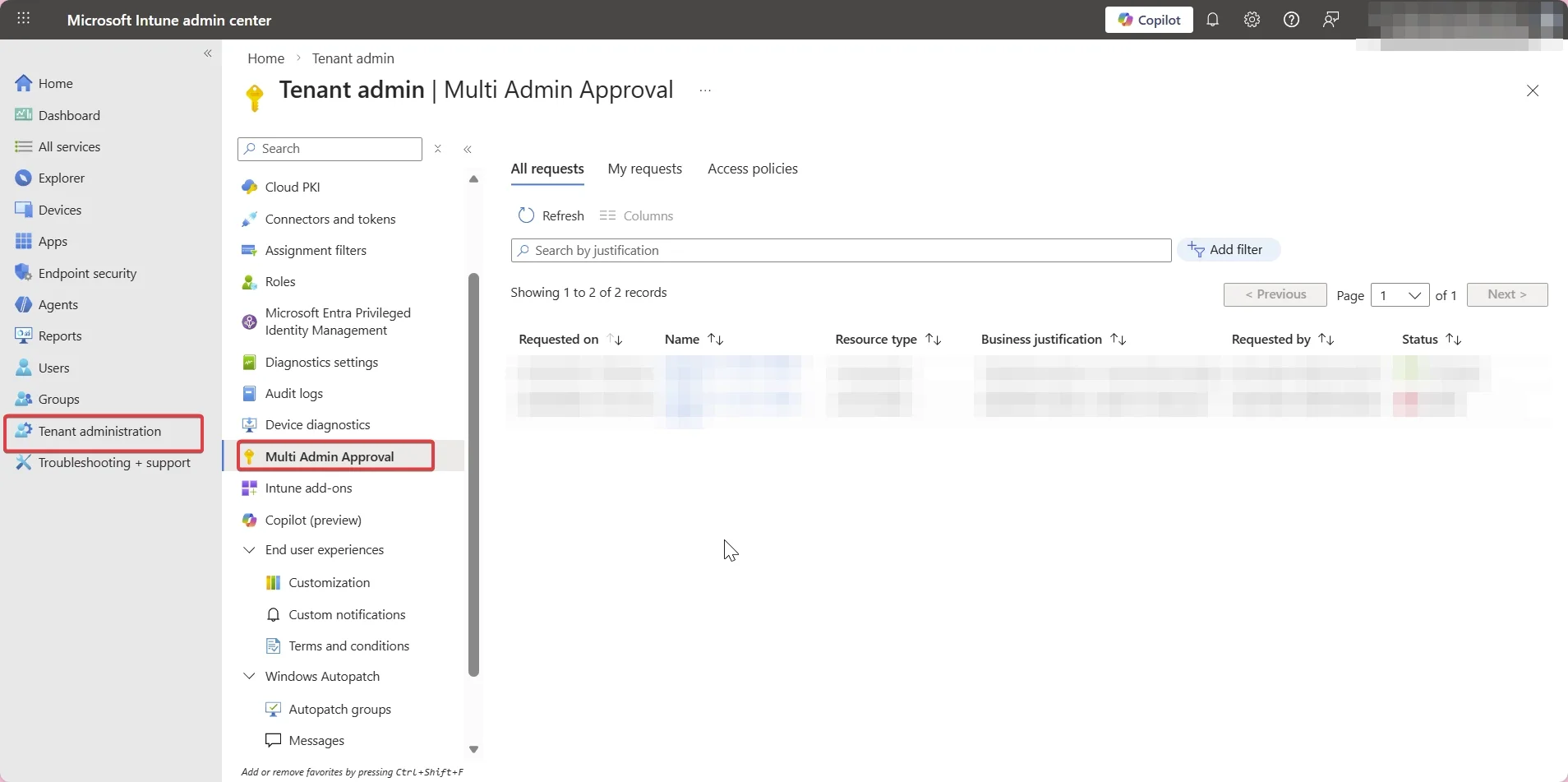
3. Go to ‘Access Policies’ → Create → Name it something meaningful
4. This is where it becomes effective: Choose the policy type as ‘Device wipe’
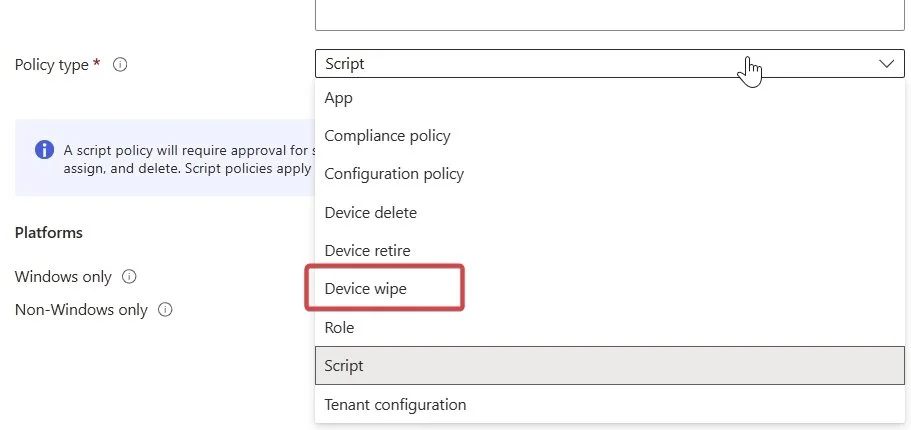
5. Hit next, and nominate a group you would like as the approvers. Make sure this is a selective, trusted user group. The approver group itself would also require at least one Intune role assignment.
6. Hit next and hit submit for approval. This policy is now submitted but not yet approved.
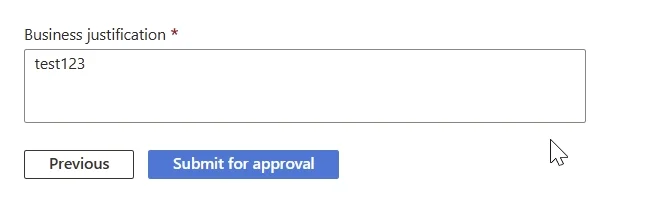
7. Now you need a second administrator to go in and approve your request.
8. Another important step: After the second administrator has approved, the original admin account that requested the policy must now go BACK into the request and hit complete request
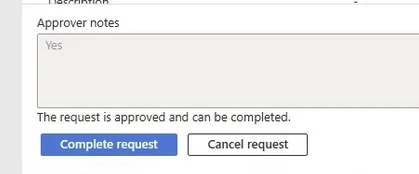
9. Once that’s done, you should be able to see your newly created Multi Admin Approval policy for device wiping implemented!
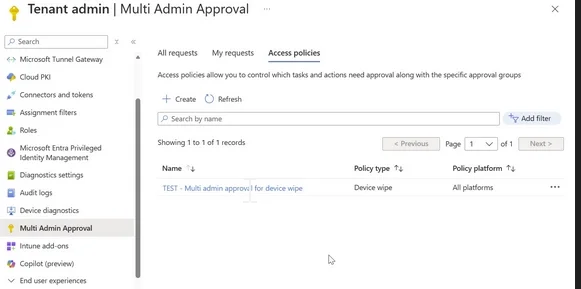
There are policies available more than just ‘Device Wipe’. We recommend you also consider adding the similar policies for at least:
Device Retire
Script (particularly high risk, as threat actors can do some real damage with this one)
But can’t a Global Administrator just create another Global Administrator/Intune Administrator account and approve this themselves with a second account?
Well unfortunately, yes by default. Which brings us to the following recommendations….
Key Recommendation 2: Enforce Phishing-resistant MFA
From the Incident:
The facts still remain unclear on how the initial access into Stryker was obtained. However, the Threat Actor reportedly gained access to Global Administrator privileges as part of the intrusion. https://www.bleepingcomputer.com/news/security/stryker-attack-wiped-tens-of-thousands-of-devices-no-malware-needed/
In most cases, Global Administrator is the equivalent of “I can do whatever I want in this organisation’s M365 environment”. Hence why it is so important to secure properly.
Whilst it hasn’t been confirmed it was phishing-related, a general solid advice for Global Administrator accounts (and every other privileged role including Intune Administrator) is implementing phishing-resistant Multi-Factor Authentication (MFA). Common implementations include FIDO2 keys (e.g. YubiKeys), Windows Hello for Business and especially the newer method, passkeys. Passkeys in particular help reduce the monetary barrier for phishing-resistant MFA, instead of having to convince management to spend ~$100 per YubiKey.
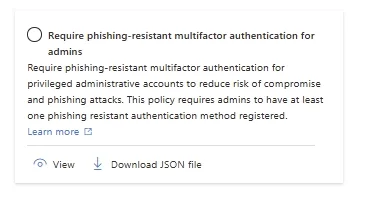
How: It’s as easy as ensuring all your privileged accounts have a phishing-resistant MFA method enrolling, then creating a Conditional Access Policy specifically targeting your privileged account roles and forcing them to require “Phishing-resistant MFA strength”: https://learn.microsoft.com/en-us/entra/identity/conditional-access/policy-admin-phish-resistant-mfa
There is a template available:
The actual control would look like the following:
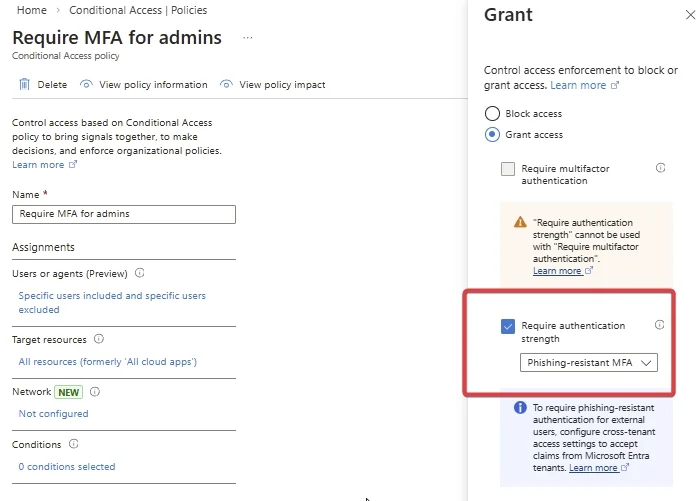
Don’t lock yourself out and make sure you test it in report-only mode first. We also recommend removing the weaker MFA methods (e.g. SMS, email) if they’re not needed to be enrolled.
When properly implemented, this control works so well in reducing the threat of phishing and credential reuse. Even if you put in your username and password, if phishing-resistant MFA is implemented properly, a threat actor would have a hard time intercepting the MFA component as its cryptographically bound to your trusted device and can’t be replayed/proxied.
Other notes: Depending on your setup, you may need to exclude break-glass accounts and/or service accounts. But be very selective in what you choose to exclude. You will also need an appropriate M365 license in order to create a custom Conditional Access policy for this.
Additionally, if you’re using Microsoft’s Privileged Identity Module (PIM), then you will need to create authentication context to force this control when they elevate their privileges. https://learn.microsoft.com/en-gb/entra/identity/conditional-access/concept-conditional-access-cloud-apps?tabs=powershell#tag-resources-with-authentication-contexts
Key Recommendation 3: Tighten Your Access Patterns and Conditional Access Policies for Privileged Roles
From the Incident: Again, the facts aren’t clear here. We don’t know whether the Global Administrator account was accessed from a trusted location (e.g. Stryker office) and a privileged access workstation (e.g. a secure jump box), or how the Conditional Access Policy was configured.
However, if you follow a few additional steps here to harden your privileged account devices and make your access patterns less promiscuous, you will make the threat actors’ lives a lot harder.
Require compliant or hybrid Azure AD joined devices:
This is an incredibly useful policy that basically blocks any sign-ins that aren’t from a company-enrolled device. A threat actor is less likely to be able to login from an untrusted device this way.
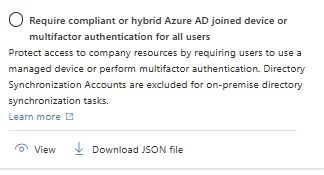
Create a Privileged Access Workstation (PAW): Basically the concept is, limit access to global administrator accounts from specific designated, security hardened workstations. These Fort Knox workstations should have all the bells and whistles from endpoint security perspective; that way, you can trust they are less likely to be compromised, and are the appropriate devices to be used for your most privileged accounts.
https://learn.microsoft.com/en-us/security/privileged-access-workstations/privileged-access-devices
Create named locations for your most privileged accounts: Just to make it harder for threat actors, you should restrict the number of IP addresses your privileged accounts can log in from by creating ‘Named Locations’. A practical tip might be restrict it to specific offices you operate in and their static WAN IP addresses, or even a trusted proxy IP address.
https://learn.microsoft.com/en-us/entra/identity/conditional-access/policy-block-by-location
Key Recommendation 4: “Do you need Global Admin? Seriously? How about a different role/custom role/temporary PIM role?”
From the Incident: All we know is a Global Administrator account were used and was compromised in the Stryker incident. We don’t know how many Global Administrator accounts there were in the tenant, and how Global Administrator accounts are typically used in the environment. In most roles, there is no reason that Global Administrator privileges are required, even to support day-to-day IT operations.
However, based on our experience, it is unfortunately way too common to come across too many accounts that have been given permanent Global Administrator permissions, when a simpler role would have sufficed. So how should you deal with this?
How: We’ve broken this into three steps:
1. Pushback - “why do you need this?”: Follow the principle of least privilege, and question each person that requests a Global Administrator account (especially those that are a bit too insistent!). Understand their needs, which bring us to the second step….
2. Choosing a less privileged role OR creating a custom role: 90% of the time, a Global Administrator account really isn’t needed (when say a User Administrator role would suffice). Sometimes, you need something a bit more out of a box, so you create a custom role (e.g. selecting specific permissions). Bit of a pain, but it is well worth it when you can limit the blast radius if one of your users get popped. Plus, it is relatively trivial with the use of AI to help you nowadays! https://learn.microsoft.com/en-us/entra/identity/role-based-access-control/custom-create
3. Implement Just-in-Time access via PIM : To make it even more secure, you can time limit how long you’ll give specific users a privileged role for to complete a specific task. This creates auditability, tracks business justification and reduces exposure. https://learn.microsoft.com/en-us/entra/id-governance/privileged-identity-management/pim-configure. Note: This would require Entra ID P2 licensing.
My team need regular access to Intune! What should I do?: Create a custom role that gives them view/limited write access into Intune here is your best bet. The point is, you need to restrict down who can initiate a device wipe.
Closing note
We recognise every organisation is different, and the ability to implement all or some of these recommendations may pose unique challenges depending on how your IT environment is set up. However, hopefully even implementing one of these controls would help strengthen your security posture in your M365 environment, in event of a Stryker/Handala style situation!
If you’d like assistance in having your M365 environment security reviewed or even have your controls tested through a M365 threat assessment, contact us here.
Experiencing a M365 incident? Contact us now here.